
Step-by-Step Guide to UPI Withdrawing Cash From an SBI ATM
Step-by-Step Guide to UPI Withdrawing Cash From an SBI ATM
withdrawing cash from an SBI ATM using UPI (also called UPI QR Cash, Interoperable Cardless Cash Withdrawal – ICCW, or UPI-ATM). This is the standard process as of March 2026, based on NPCI guidelines and widespread availability at SBI ATMs.
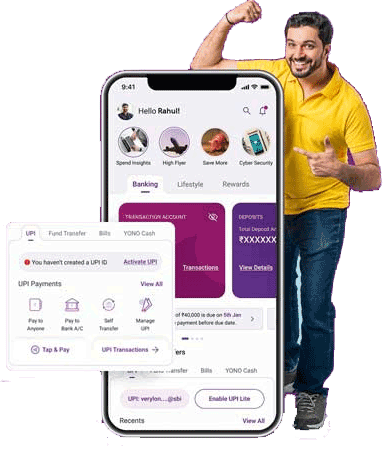
This method works with any UPI app (Google Pay, PhonePe, Paytm, BHIM, SBI’s own BHIM SBI Pay, etc.) and doesn’t require your debit card—just your phone and UPI setup.
Prerequisites
- Your mobile number linked to your bank account and UPI ID (VPA) must be active.
- You need internet on your phone (for scanning and authorizing).
- The ATM must support UPI cash withdrawal (most urban SBI ATMs in places like Bhubaneswar do—look for the “UPI Cash Withdrawal” or “UPI QR Cash” option on the screen. If not visible, try another machine).
- Amount in multiples of ₹100 (minimum usually ₹100–₹500, max ₹10,000 per transaction).
- Your UPI daily limit (often ₹1 lakh overall) must cover it, but cash withdrawal is capped at ₹10,000 per txn.
Step-by-Step Process at the ATM
- Visit a supported SBI ATM Go to an SBI ATM that shows the UPI option on the welcome screen (many in Bhubaneswar city branches/ATMs support it).
- Select the UPI option On the ATM touchscreen, choose “UPI Cash Withdrawal”, “UPI QR Cash”, “Withdraw Cash using UPI”, or similar (it may say “ICCW” or “Cardless Withdrawal via UPI”).
- Enter the withdrawal amount Key in the amount you want (e.g., ₹2,000). It must be in multiples of ₹100 and within limits (up to ₹10,000 max per transaction). Confirm/submit.
- QR code appears on the screen The ATM will display a dynamic/single-use QR code (it looks like a square barcode with a timer or validity note—usually valid for 2–5 minutes). A message will say something like: “Scan this QR with your UPI app and authorize.”
- Scan the QR code with your UPI app Open your preferred UPI app on your phone:
- Go to the scan/pay section (e.g., “Scan & Pay” in Google Pay/PhonePe).
- Use the camera to scan the QR code shown on the ATM screen.
- The app will auto-detect the amount (pre-filled from the ATM) and show details like “UPI ATM Withdrawal” or merchant as the bank/ATM.
- Verify details and authorize Confirm the amount matches what you entered. Select the bank account linked to your UPI (if multiple). Enter your UPI PIN to approve the transaction.
- Transaction processes Once your UPI PIN is verified, the payment authorizes instantly via UPI. The ATM screen will show “Transaction Successful” or similar, and it will dispense the cash immediately (usually within seconds).
- Collect your cash and receipt Take the cash from the dispenser. Collect any printed receipt (if available). The amount is debited from your bank account linked to UPI.
Quick Tips & Troubleshooting
- Time-sensitive: Scan the QR quickly—it’s single-use and expires soon.
- If scan fails: Ensure good lighting, hold phone steady, or regenerate QR if option available (some ATMs allow retry).
- Failed transaction: If money debits but no cash dispenses (rare), note the transaction ID/time and contact your bank/UPI support or SBI customer care (1800 11 2211) immediately—reversals usually happen within hours/days.
- Limits reminder: ₹10,000 max per transaction (NPCI rule); often 2–5 txns/day depending on your UPI setup. No extra fee usually (follows standard ATM free txn rules—e.g., 5 free at SBI/non-SBI varies).
- Security: Never share UPI PIN; use trusted apps; avoid if ATM looks tampered.